
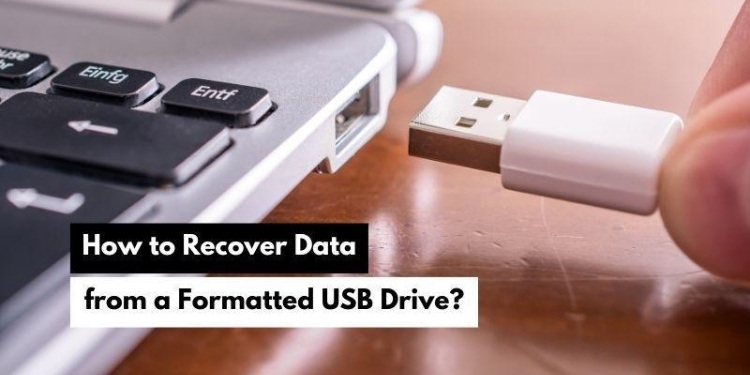
In this article, you will learn to recover data from a formatted USB with a dedicated tool and some other efficient methods.
Reformatting a USB is a good practice to keep the flash drive functioning properly, especially when you want to connect it to a new operating system or use it according to your preferences. Sometimes, you may lose the data when you accidentally reformat a USB drive. Almost all of us have faced this situation. Didn’t you?
Well, if you are experiencing the same issue and are concerned about permanently deleting the data, don’t worry. There are possible solutions you can implement to get your stuff back from the USB. This article presents several efficient and reliable methods to recover data from formatted USB drives. Let’s get into further details.
Part 1. What To Do Before Attempting To Recover From Formatted USB?
Before exploring how to recover data from a formatted USB drive, don’t forget to follow the steps listed below.
- Check the Physical Damage: If you find that the drive is damaged physically, don’t try to recover data from it. Otherwise, you will lose all the stuff permanently. In this case, contact a reliable data recovery company to help you get out of the trouble.
- Stop Using the USB: Once your USB flash drive is reformatted, stop using it immediately, and don’t store any files on it. The reason behind this fact is that if the data files are overwritten, you won’t be able to recover any file stored previously on the drive. Plus, perform a quick USB data recovery to increase the chances of restoring your lost files safely.
Part 2. Wondershare Recoverit: The Ultimate Solution To Recover Data From a Formatted USB
Usually, it becomes challenging for you to recover a formatted flash drive. However, using a dedicated, third-party data recovery tool can help you restore data from a formatted USB. It is always a recommended solution.
If you need a highly secure data recovery tool with the highest successful recovery rate, Wondershare Recoverit is the one you need. It is designed explicitly to deal with data loss issues effectively and efficiently. It supports multi-device compatibility, such as Windows, Linux, Mac, and NAS.
Key Features
Recoverit is packed with a range of unmatched features, such as:
- It offers multi-format support (for over 1,000 file types).
- It helps you recover data from 500+ data loss scenarios, including formatting, corruption, malware infections, and more.
- This tool keeps your data protected (with advanced encryption techniques) when performing a USB file recovery.
- It offers the highest precise data recovery rate: 99.5%.
- You can preview data before recovering. Plus, the deep scan feature ensures precise recovery.
- It can recover 100MBs of data for free.
How to Recover a Formatted USB Drive with Recoverit?
Remember, you don’t use your USB or store any file on it before you perform a safe recovery. The process of recovering a formatted flash drive is super simple with Recoverit free data recovery software. Download the tool from its official website and go ahead.
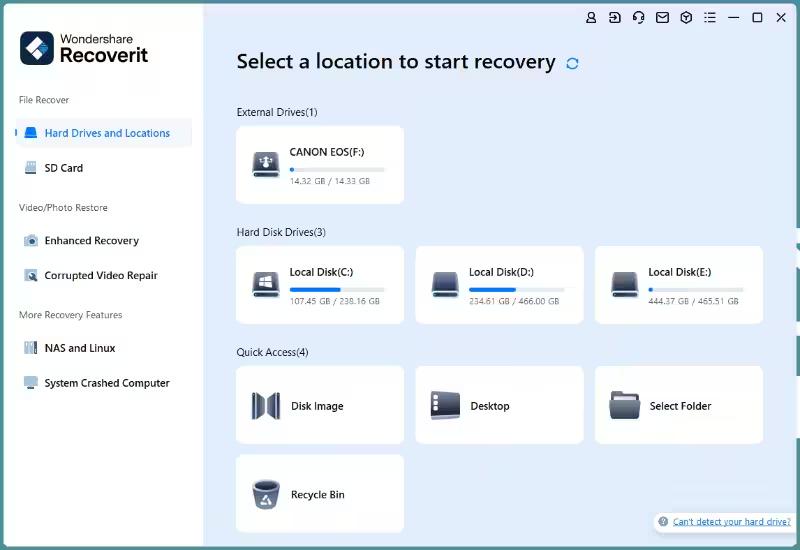
Step 1: Connect the formatted USB drive to your computer and select it as a target location.
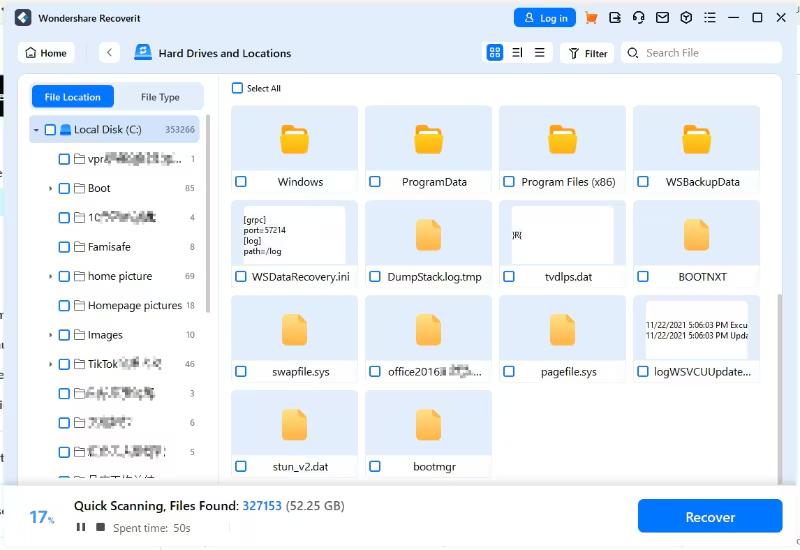
Step 2: Scan the chosen USB flash drive to let the tool find recoverable data. You can view the progress of this process at the bottom-left corner of the screen, as shown below.
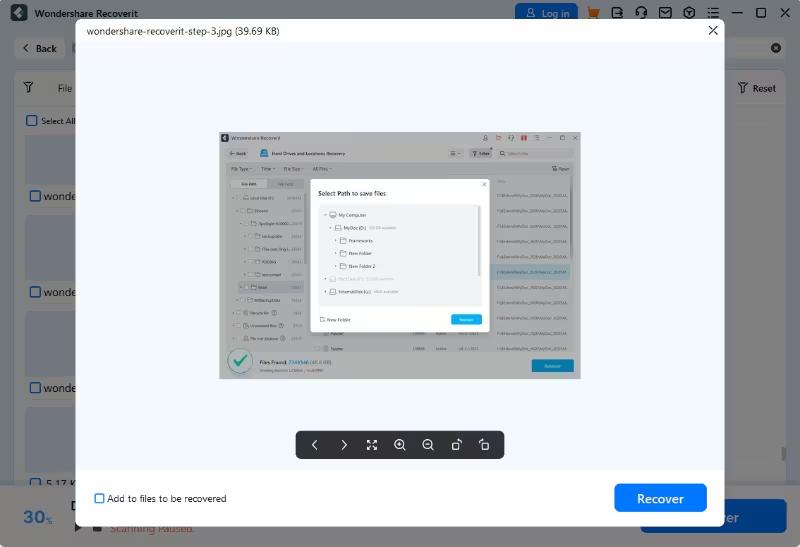
Step 3: Wait for the scan to complete. Then, you will be able to preview the data on your screen. Preview what you want to recover. If you find the correct data, hit the Recover button and save it to a safe location on your system.
Part 3. Other Methods To Recover Data From Formatted USB Drives
Though there aren’t many ways to recover data when a USB flash drive is accidentally formatted (due to its permanent nature), three methods listed below have found success in some situations. Let’s look at how these methods lend you a helping hand.
- Using File History in Windows
Windows creates regular backups (only if you have enabled this option) of your data and you can access it from the built-in feature – File History. This feature only works if your data files are backed up before they are lost. Otherwise, you won’t be able to access the data with Windows File History.
By default, the File History feature backs up videos, photos, music, downloads, documents, and desktops. If you have ever saved your USB data to them, the File History feature may recover it. It may also work even if you have saved the data temporarily. Below are steps to recover formatted flash drives with Windows File History.
Step 1: Connect a formatted USB to your system.
Step 2: Now, type “Restore your files using File History” in the search box of your taskbar. Make sure the File History feature is enabled.
Step 3: Look at the files you want to restore from the USB and click the Restore button. It will recover files from a formatted USB.
- Command Prompt Method “chkdsk”
The Windows Command Prompt can help you fix a lot of errors and issues, including recovering data files from a formatted USB flash drive. If you have never used this tool before, don’t be concerned. It is super simple to use the command prompt to recover data from a formatted USB. Let’s look at the steps you need to follow.
Step 1: Connect the USB to your system, open File Explorer, and go to “This PC.”
Step 2: Now, see the drive letter assigned to the USB.
Step 3: Go to the Start menu, type “cmd,” and open it as Administrator, as shown below.
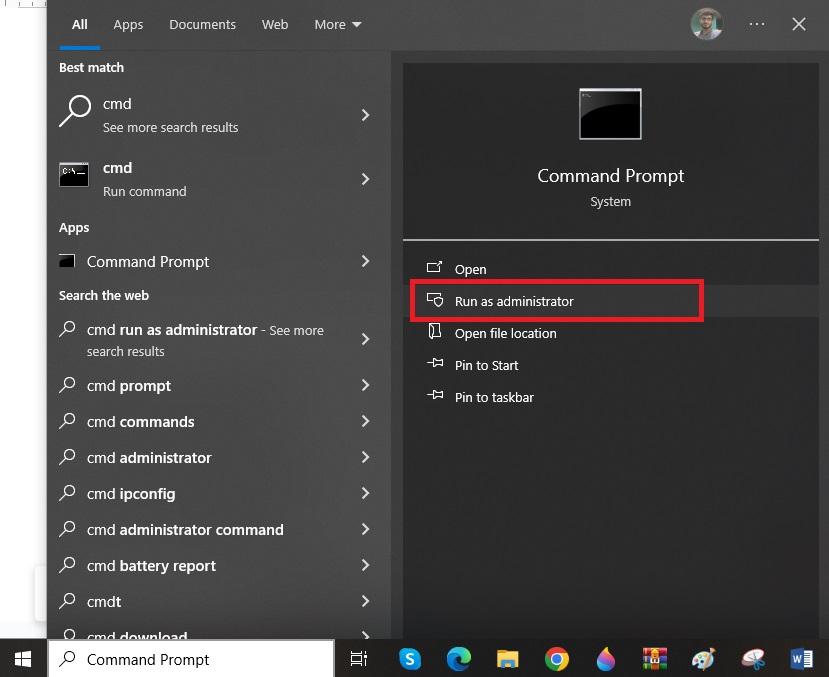
Step 4: It is time to enter the command, “chkdsk E: /r.” Don’t forget to replace the letter “E” with your drive letter that you noted in Step 2. Then, press the Enter key.
Step 5: Now, close the command prompt and open File Explorer. Then, choose the USB drive to see if your data is stored correctly.
- Using Other Third Party Tools (Only Recommend)
If you are still looking for more solutions to recover files from formatted USB drives, try using other third-party tools. Make sure you always use a recommended USB recovery tool, such as DiskDrill, Stellar Data Recovery, EaseUS, MiniTool, Recuva, and more.
Using a recommended data recovery utility not only helps you get your deleted files back from a formatted USB flash drive, but it also keeps your data safe. In addition, these tools save you time.
Therefore, if you are unable to recover a formatted USB drive with built-in features like Windows File History and CMD, always use a trusted third-party tool to get over the line.
Part 4. What To Do After Recovering Data From Formatted USB?
Now, you are well familiar with how to recover data from a formatted USB. After you restore the lost data, follow the tips below to avoid data loss problems in the future.
- Create Backups: It is important to create a backup of your USB drive. Doing this will help you access your data immediately from the backup files in case of data loss.
- Use Cloud Drives: Storing your data on Cloud drives is an exceptional way to keep its backup. Always upload data files through Cloud drives to keep a triple backup. It is essential when the files stored on your USB are important.
- Apply the 3-2-1 Backup Strategy: Keep three copies of your data (one original and two copies). Plus, use two different media storage devices to store your data copies. Moreover, always keep one copy offsite. It will take your worries away even if a site-specific issue occurs.
- Maintain the USB Drive: Maintain and check your USB flash drive regularly. It will help you monitor if anything unusual happens. This way, you can fix the issue as soon as you find it.
Summing It Up
You may lose data from a USB flash drive due to a couple of reasons, including accidental formatting, power failure, virus attacks, file system corruption and others. If your data is lost due to a formatted USB, restoring it becomes a tough nut to crack.
However, some methods can help you recover data from a formatted USB drive, such as using CMD, Windows File History, and dedicated, third-party data recovery software. Using a trusted data recovery tool like Wondershare Recoverit will always be worth it. It supports more than 1,000 file formats and offers a 100% secure recovery. Moreover, it is compatible with different operating systems.